Mining
Run NiceHash Quickminer at Startup (without logging in)
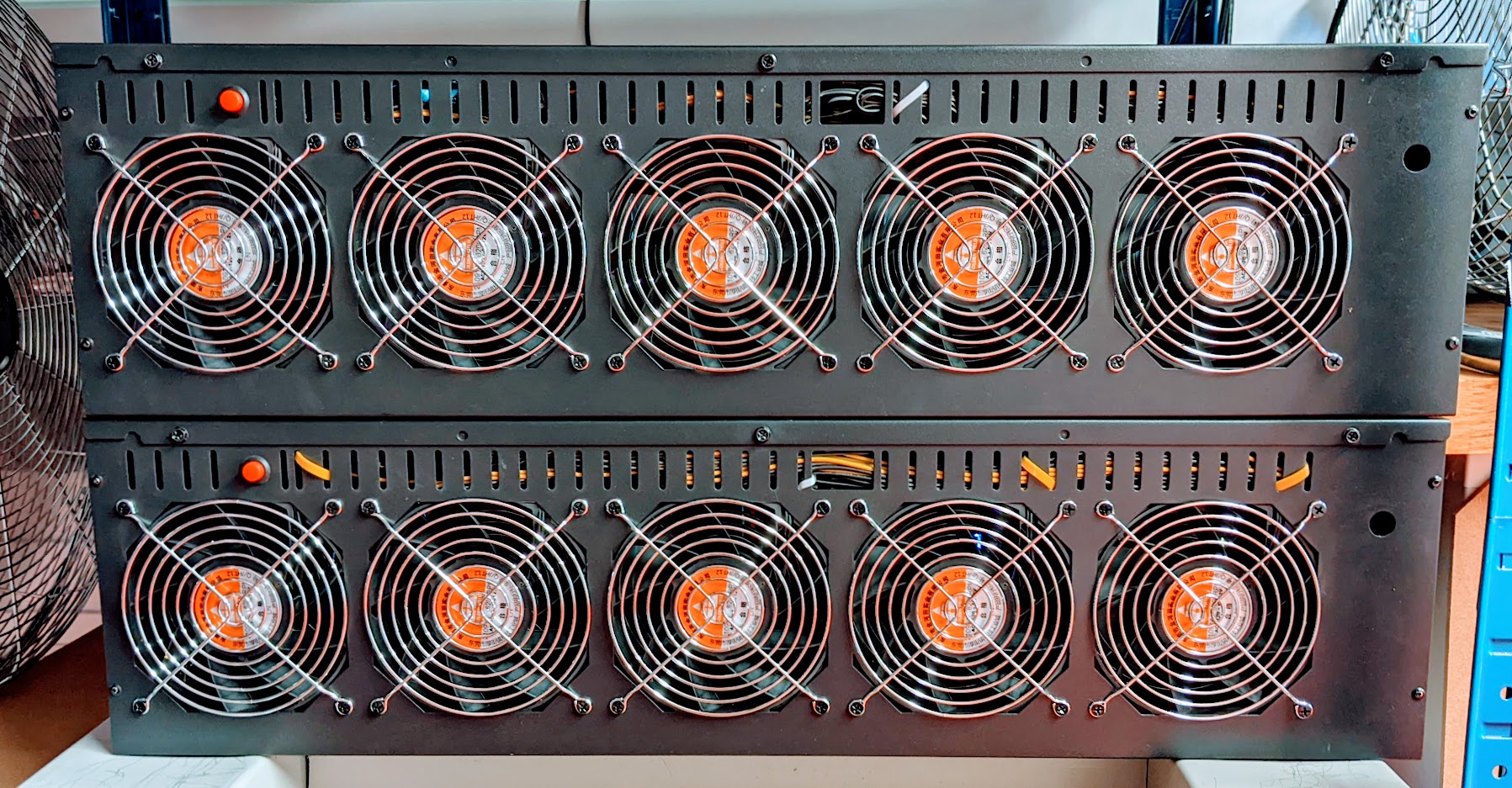
Featured Image: My pair of Minebox 8Ls
One of the minor problems that I’ve had with the day-to-day management of my rigs is the need to occasionally restart (Windows updates, add/remove a card, test a new GPU driver, flash bios – you know, the daily management stuff!)
As you’ll know a restart means the need for user login to get Nicehash Quickminer to start. I’ve got over 4gh/s of machines, 5 of them are remotely controlled via Windows Remote Desktop:
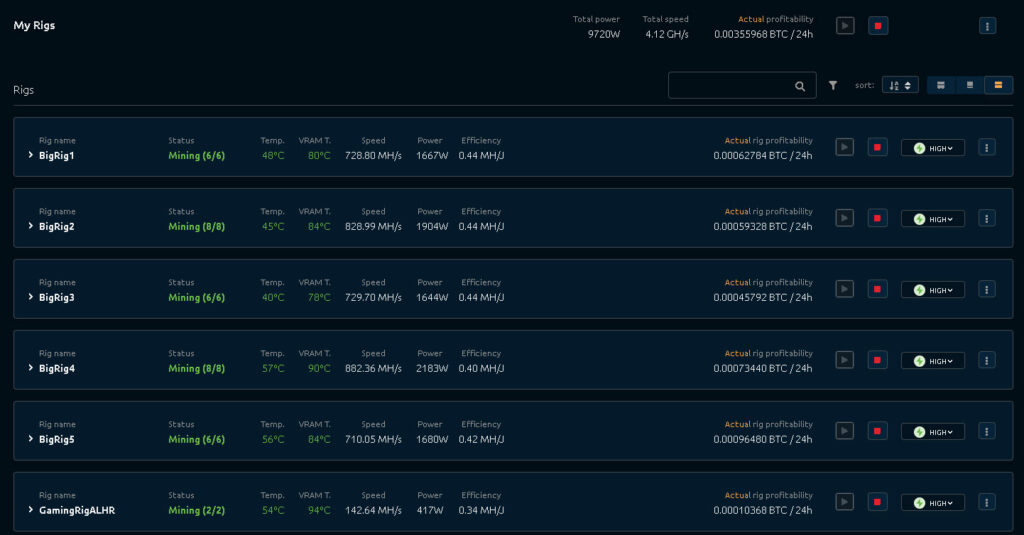 Most of my NHQM setup running after a full restart test running at 4.12GH/s
So, you can imagine that logging in to each machine to get it running is a time-consuming process.
Not anymore, as I’ve learned how to set Nicehash Quickminer to automatically start mining at Windows Startup without a login, using Task Scheduler.
Ideally, you’ll have the latest RC of Nicehash Quickminer. I’ll come to the why in just a moment.
Here’s how to get Quickminer started without logging into your PC.
QuickMiner Settings
Assuming you’ve already got QuickMiner installed, head to the main options screen and select “start automatically with Windows”. Also, select “Automatically begin mining”.
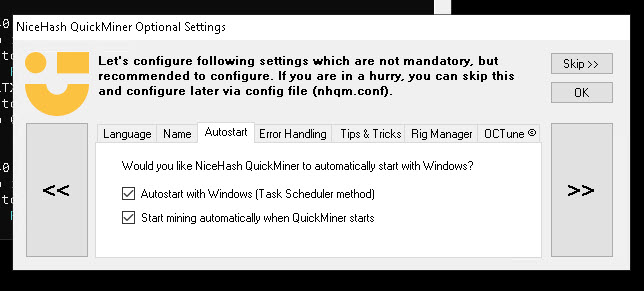 Autostart settings in NHQM
On the Error Handling tab, change the action to “Reboot Rig”. I’ve found a reboot is usually the best way to handle a major crash (not that I get those very often stability FTW!). I’ve always been reluctant set it because it would mean logging back in.
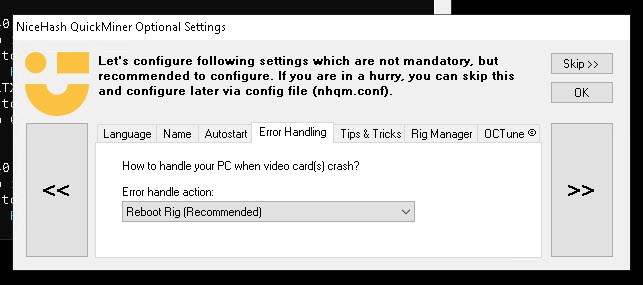 Error Handling settings in NHQM
Click OK and this is important: set the miner running in your Windows session. NHQM seems to remember whether it was started or stopped when Windows last restarted!
Windows Task Manager settings
Now, onto Task Scheduler, which you can find in the Windows search bar. Open up Task Scheduler, and in the left-hand pane you’ll see a folder called Task Scheduler Library:
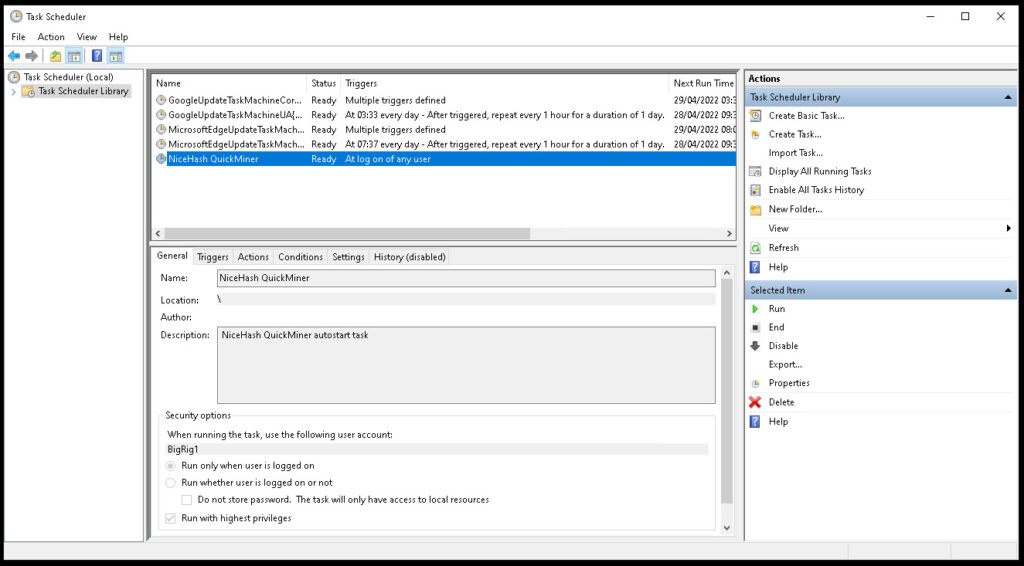 Windows Task Scheduler
You’ll see “NiceHash Quickminer” in the top pane. This has been created by NiceHash’s own setup process. Right Mouse on that task and select Properties. There are a series of tabs across this dialogue, some tabs will need settings changes, others not so much.
Under “General”:
- Select “Run whether user is logged in or not”
- In the “Configure for:” dropdown, select the Windows Server 2008 R2 option
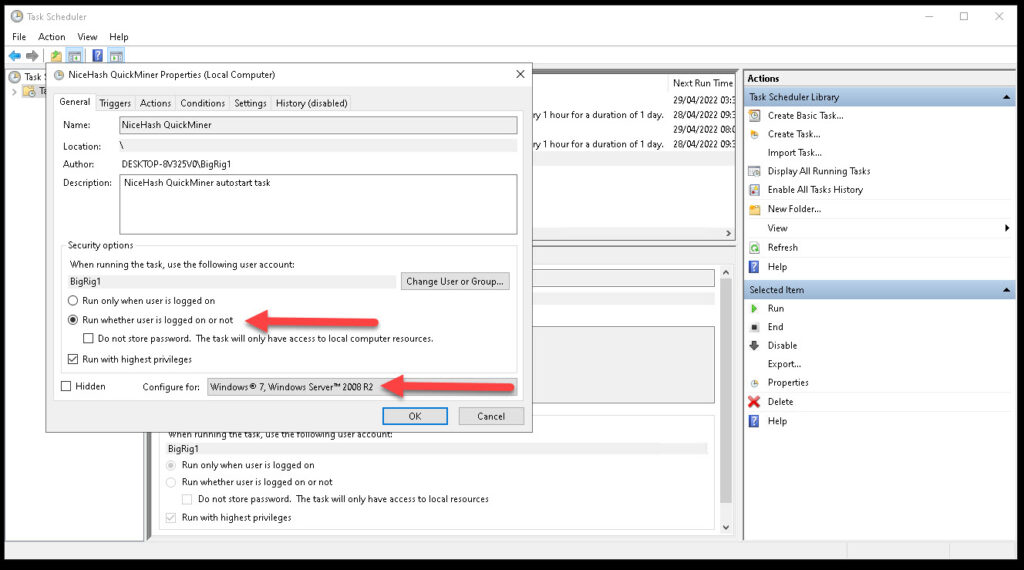 General Properties: NHQM in Windows Task Scheduler
Under Triggers:
- Edit trigger “at log on” by selecting and editing
- Begin the task “At Startup”
- Delay task for 30 seconds
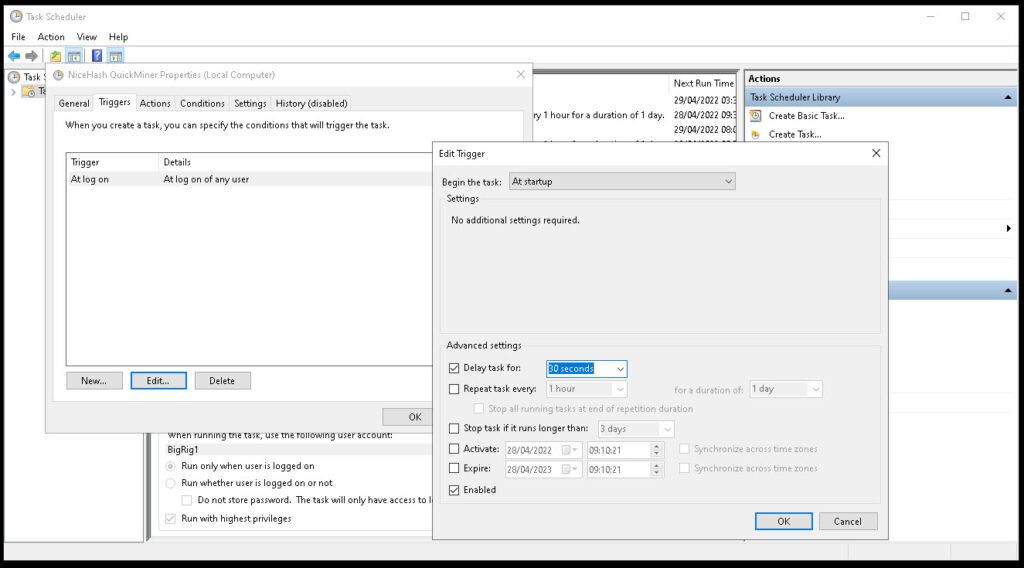 Triggers tab in Task Scheduler
Under Actions:
- Leave this tab unchanged
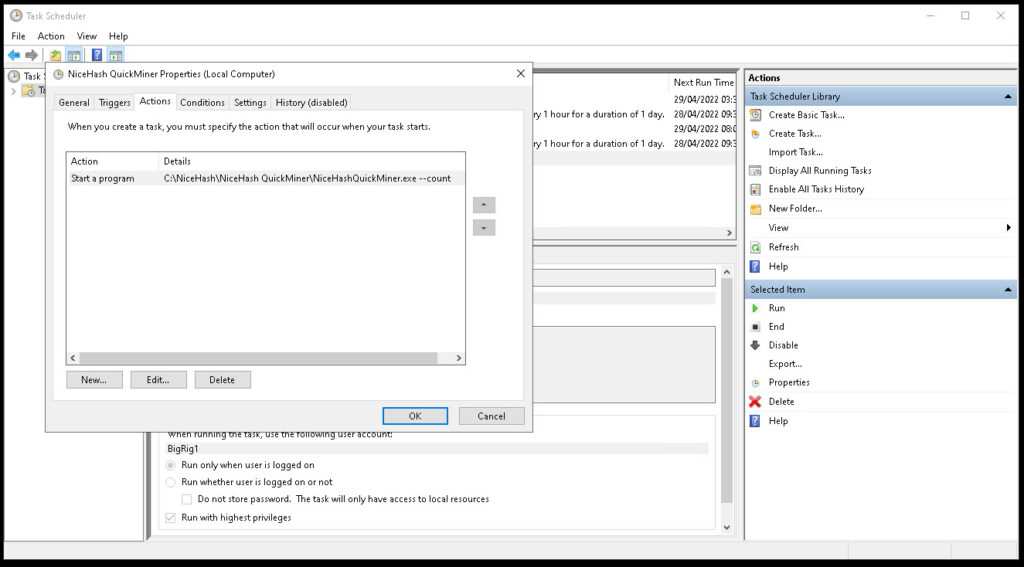 Actions are correctly pre-set for you by the NHQM installer
Under Conditions:
- Leave this tab unchanged
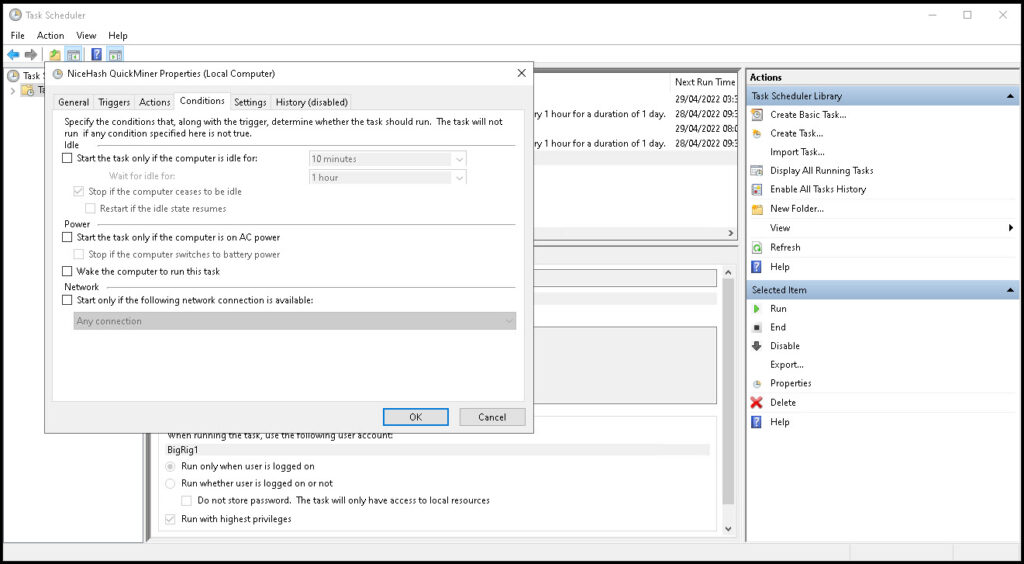 Conditions are correctly pre-set for you by the NHQM installer
Under Settings:
- Leave these settings alone but do check “Stop the task if it runs longer than 3 days”
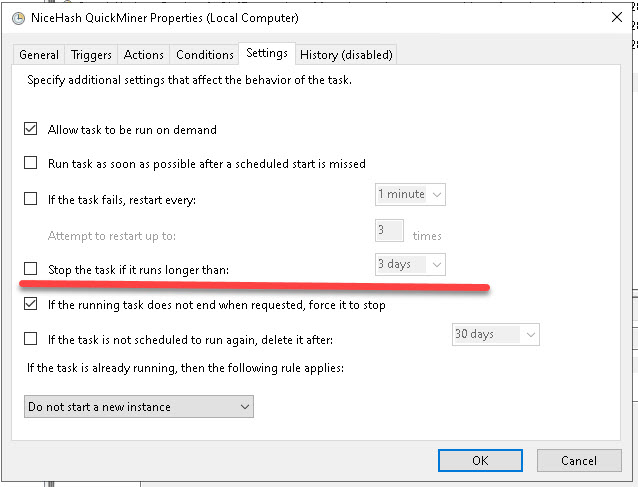 In the Settings tab, leave everything alone but check the “stop task if it runs longer than” box is unchecked
Leave history disabled – I have a feeling that’s a logger that will gradually fill up your SDD!
When you OK to all the settings changes, Task Scheduler will need your password:
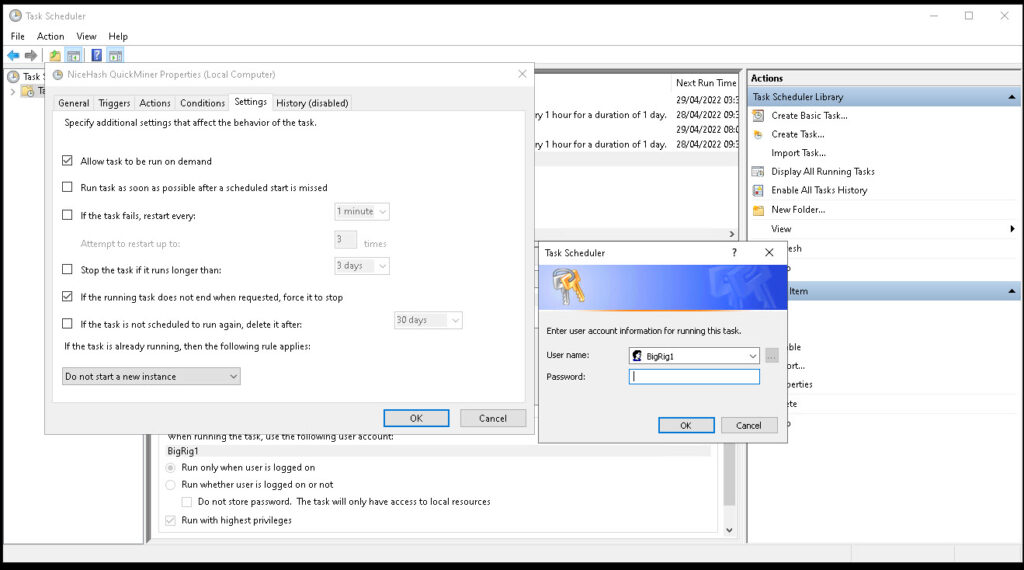 Enter your user password to save the revised task item
And that should be everything. Time to test.
Restart your PC to test
Remember that the miner has to be running when the machine is restarted. Go ahead and restart your machine and, walk away. You’ll probably find yourself refreshing Rig Manager, a lot. My Mineboxes in particular have very old/slow CPUs so a full restart takes time. Have faith and wait a little while. Your rig should reappear from offline in rig manager within a reasonable amount of time.
Any issues or problems, shout in the comments!
Keep reading

How to Install Hive OS to a M.2 SATA or mSATA drive

How to mine and support ERGO
Build a Solo Bitcoin Mining Node with Umbrel and DATUM Gateway
Testing NBminer in Windows and why I’m moving to pool mining